您现在的位置是:首页 > cms教程 > Discuz教程Discuz教程
wordpress、Discuz产品部署示例
 怜菡2025-07-21Discuz教程已有人查阅
导读Wordpress、Discuz产品部署三个产品提供挂载的目录信息创建一个博客,用wordpress数据库的设置把nginx和php加入开机自启动:首先,在数据库创建一个wordpress的数据库
Wordpress、Discuz产品部署
三个产品提供挂载的目录信息
数据库的设置
把nginx和php加入开机自启动:
上传wordpress的包或者用下载到/application/nginx/html/blog
vim /application/nginx/html/blog/wp-config.php
内容填写完连接信息后,下一步,会生成连接文件,可在页面复制。
或者修改blog/wp-config-sample.php 并保存为blog/wp-config.php
1、在LNMP主机里在做解析(有几台Web就做几台解析)
添加伪静态:
在设置-->固定链接-->自定义结构(选定)/archiver/%post_id%.html
然后添加伪静态文件
Wordpress产品的挂载目录为:
再挂载:
NFS提供的挂载数据如下:
创建BBS论坛:
在数据库里创建相应的数据库和授权连接的IP段:
数据库:
说明:192.168.162.% 此处是远程的IP段,如果是本机则改成 localhost
WEB端:
测试远程连接数据库:
来自 192.168.162.135 的回复: 字节=32 时间<1ms TTL=64
再查看一下服务器的IP和windows解析是不是一样。
浏览器安装Discuz
注:所需状态必须全绿
更改数据库权限:
管理用权限,因为上面对数据库授权太大,所以这里要更改一下数据库的用户权限。
头像目录:/bbs/uc_server/data/avatar
图片目录:bbs/data/attachment/forum
为了防止别人来重新安装,也可以把删除:
在页面选择“模块管理”进入
输入验证密码。
选择论坛
先删除默认的模块:(先删除默认版块)
添加新的分区
添加新的版块
配置伪静态
查看rewrite规则(点击进入,下翻找开Nginx Web Server)
在服务器配置伪静态
检查语法:


三个产品提供挂载的目录信息
BLOG
/data/ /blog/wp-content/uploads/ 图片和附件
BBS:
/data/ /bbs/data/attachment/image
/data/ /bbs/uc_server/data/avatar 图像目录
/data/ /bbs/data/attachment/forum/ 图片路径
WWW:
/data/ / /images/swfupload
/data/ / /uploads/allimg/
创建一个博客,用wordpress数据库的设置
把nginx和php加入开机自启动:
[root@lnmp-1 extra]# vim /etc/rc.local
/application/nginx/sbin/nginx
/application/php/sbin/php-fpm
首先,在数据库创建一个wordpress的数据库
mysql> create database wordpress; 创建wordpress 的数据库
mysql> show databases; 查看所有的数据库
创建用户wordpress 并指定wordpress在192.168.162.135上登录,给出密码
mysql> grant all on wordpress.* to wordpress@'182.61.51.96' identified by '111111';
mysql> flush privileges;
查看wordpress的数据库
mysql> select user,host from mysql.user where user='wordpress';
查看所有的数据库
mysql> select user,host from mysql.user;
mysql> use wordpress 切换到wordpress
mysql> show tables; 查看wordpress下的所有表
mysql> select * from ol_users; 查看ol_users 的所有信息。
说明:如果创建博客站点时报错,就注意下面all那里,不要做限制。
mysql> grant all on wordpress.* to wordpress@'192.168.162.%' identified by '111111';
mysql> flush privileges;
完成后,再执行下面的命令。
mysql> grant select,insert,update,delete on wordpress.* to wordpress@'192.168.162.%' identified by '111111';
mysql> flush privileges;
安装wordpress 的博客程序上传wordpress的包或者用下载到/application/nginx/html/blog
cd /application/nginx/html/blog
rz -y wordpress-4.2.2-zh_CN.tar.gz 上传这个包
[root@lnmp-1 blog]# tar xf wordpress-4.2.2-zh_CN.tar.gz
[root@lnmp-1 blog]# mv wordpress/* . 把wordpress里的所有文件移到当前目录
[root@lnmp-1 blog]# rm -fr wordpress/
权限管理,把所有文件设置为644,目录设置为755
[root@lnmp-1 html]# find ./blog/ -type f|xargs chmod 644
[root@lnmp-1 html]# find ./blog/ -type d|xargs chmod 755
把上传文件设置为nginx的用户和组。
[root@lnmp-1 html]# chown -R nginx.nginx blog/wp-content/uploads/
修改index.php 加入blog.conf配置文件
[root@lnmp-1 application]# cd /application/nginx/conf/extra/
[root@lnmp-1 extra]# vim blog.conf
server {
listen 80;
server_name blog.etiantian.org;
root html/blog;
location / {
root html/blog;
index index.php index.html index.htm; 把index.php的主页面加入
}
location ~.*\.(php|php5)?$ {
fastcgi_pass 127.0.0.1:9000;
fastcgi_index index.php;
include fastcgi.conf;
}
}
配置一个连接数据库的文件:vim /application/nginx/html/blog/wp-config.php
内容填写完连接信息后,下一步,会生成连接文件,可在页面复制。
或者修改blog/wp-config-sample.php 并保存为blog/wp-config.php
##注:创建数据库的信息一定要和这里一样,不然连接不上
// ** MySQL 设置 - 具体信息来自您正在使用的主机 ** //
/** WordPress数据库的名称 */
define('DB_NAME', 'wordpress');
/** MySQL数据库用户名 */
define('DB_USER', 'wordpress');
/** MySQL数据库密码 */
define('DB_PASSWORD', '111111');
/** MySQL主机 */
define('DB_HOST', '192.168.162.131');
* 不同的数据表前缀。前缀名只能为数字、字母加下划线。
*/
$table_prefix = 'od_';
把IP做解析:1、在LNMP主机里在做解析(有几台Web就做几台解析)
[root@lnmp-1 blog]# vim /etc/hosts
192.168.162.135.ebingou.cn ebingou.cn bbs.ebingou.cn blog.ebingou.cn
192.168.162.131 db.mysql.sql
2、在Windows里做解析(有几台Web就做几台解析)
C:\Windows\System32\drivers\etc\hosts
192.168.162.135.ebingou.cn bbs.ebingou.cn blog.ebingou.cn ebingou.cn
192.168.162.136.ebingou.cn bbs.ebingou.cn blog.ebingou.cn ebingou.cn
3、连接数据库也可以做解析(优化)
192.168.162.131 db.mysql.sql
可以/application/nginx添加伪静态:
在设置-->固定链接-->自定义结构(选定)/archiver/%post_id%.html
然后添加伪静态文件
[root@lnmp-1 extra]# pwd
/application/nginx/conf/extra
[root@lnmp-1 extra]# vim blog.conf
server {
listen 80;
server_name blog.etiantian.org;
root html/blog;
location / {
index index.php index.html index.htm;
if (-f $request_filename/index.html){
rewrite (.*) $1/index.html break;
}
if (-f $request_filename/index.php){
rewrite (.*) $1/index.php;
}
if (!-f $request_filename){
rewrite (.*) /index.php;
}
}
location ~.*\.(php|php5)?$ {
fastcgi_pass 127.0.0.1:9000;
fastcgi_index index.php;
include fastcgi.conf;
}
}
再检查语法和启动
[root@lnmp-1 nginx]# ./sbin/nginx -t
[root@lnmp-1 nginx]# ./sbin/nginx -s reload
关于远程管理挂载的文件目录:Wordpress产品的挂载目录为:
/application/nginx/html/blog/wp-content/uploads/
挂载:
bin/mount -t nfs -o noatime,nodiratime,nosuid,noexec,nodev, 192.168.162.130:/backup/blog/www/application/nginx/html/blog/wp-content/uploads/
说明:如果博客里面有了文件,则需要在挂载之前转移备份里面的文件:
[root@lnmp-1 uploads]# mv 2015/www/opt/
[root@lnmp-1 uploads]# rm -fr 2015/
注:此处用mv来转移文件,cp -a 会导致权限自动修改,恢复也用mv再挂载:
/bin/mount -t nfs -o noatime,nodiratime,nosuid,noexec,nodev, 192.168.162.130:/backup/blog/www/application/nginx/html/blog/wp-content/uploads/
注:此处挂载,要注意NFS提供的权限要提供匿名用户运行(all_squash),要不然会导致无法上传文件。NFS提供的挂载数据如下:
[root@nfs ~]# cat /etc/exports
#shared data for bbs by mobboy
/backup/blog 192.168.162.0/24(rw,sync,all_squash)
/backup/bbs 192.168.162.0/24(rw,sync,all_squash)
/backup/192.168.162.0/24(rw,sync,all_squash)
挂载目录的权限:
chown -R nfsnobody.nfsnobody /backup/*
恢复原有的数据:
[root@lnmp-1 uploads]# mv /opt/2015/ ./
OK!! 博客完成创建BBS论坛:
在数据库里创建相应的数据库和授权连接的IP段:
数据库:
mysql> show databases;
mysql> create database bbs;
mysql> show databases;
mysql> grant select,insert,delete,update,create,drop on bbs.* to bbs@'192.168.162.%' identified by '111111';
mysql> flush privileges;
mysql> select user,host from mysql.user;
注:上面黄颜色的授权仅用于安装,或者用all替代,工作中用不create。说明:192.168.162.% 此处是远程的IP段,如果是本机则改成 localhost
WEB端:
测试远程连接数据库:
[root@lnmp-1 ~]# mysql -ubbs -p111111 -h 192.168.162.131
cd /application/nginx/conf/extra/
vim bbs.conf
[root@lnmp-1 extra]# vim bbs.conf
access_log logs/access_bbs.log main;
server {
listen 80;
server_name bbs.etiantian.org;
root html/bbs;
location / {
index index.php index.html index.htm;
}
location ~.*\.(php|php5)?$ {
fastcgi_pass 127.0.0.1:9000;
fastcgi_index index.php;
include fastcgi.conf;
}
}
../../sbin/nginx -t
../../sbin/nginx -s reload
在此可写一个phpinfo.php测试连接
[root@lnmp-1 blog]# vim phpinfo.php
<?php
phpinfo();
?>
安装BBS Discuz产品:
cd ../../html/bbs/
wget http://download.comsenz.com/DiscuzX/3.2/Discuz_X3.2_SC_UTF8.zip
unzip -o Discuz_X3.2_SC_UTF8.zip
[root@lnmp-1 bbs]# ll
-rw-r--r-- 1 root root 12493463 6月 9 10:58 Discuz_X3.2_SC_UTF8.zip
-rw-r--r-- 1 root root 18 10月 5 02:18 index.html
drwxr-xr-x 2 root root 4096 6月 9 10:21 readme
drwxr-xr-x 12 root root 4096 6月 9 10:21 upload
drwxr-xr-x 4 root root 4096 6月 9 10:21 utility
[root@lnmp-1 bbs]# rm -fr readme/ utility/ index.html Discuz_X3.2_SC_UTF8.zip
[root@lnmp-1 bbs]# mv upload/* .
授权
[root@lnmp-1 bbs]# chown -R nginx.nginx config/ data/ uc_*
在windows解析
C:\Users\Administrator>ping bbs.etiantian.org
正在 Ping.etiantian.org [192.168.162.135] 具有 32 字节的数据:来自 192.168.162.135 的回复: 字节=32 时间<1ms TTL=64
再查看一下服务器的IP和windows解析是不是一样。
浏览器安装Discuz
注:所需状态必须全绿
更改数据库权限:
管理用权限,因为上面对数据库授权太大,所以这里要更改一下数据库的用户权限。
mysql>drop user bbs@’192.168.162.%’
mysql> select user,host from mysql.user;
mysql> grant select,insert,delete,update,drop on bbs.* to bbs@'192.168.162.%' identified by '111111';
mysql> flush privileges;
mysql> select user,host from mysql.user;
BBS 上传的路径:头像目录:/bbs/uc_server/data/avatar
图片目录:bbs/data/attachment/forum
为了防止别人来重新安装,也可以把删除:
[root@lnmp-1 bbs]# rm -fr install/
下面来添加一个模块,测试一下:在页面选择“模块管理”进入
输入验证密码。
选择论坛
先删除默认的模块:(先删除默认版块)
添加新的分区
添加新的版块
配置伪静态
查看rewrite规则(点击进入,下翻找开Nginx Web Server)
在服务器配置伪静态
[root@lnmp-1 conf]# vim extar/bbs.conf
server {
listen 80;
server_name bbs.ebingou.cn;
root html/bbs;
location / {
index index.php index.html index.htm;
rewrite ^([^\.]*)/forum-(\w+)-([0-9]+)\.html$ $1/forum.php?mod=forumdisplay&fid=$2&page=$3 last;
rewrite ^([^\.]*)/thread-([0-9]+)-([0-9]+)-([0-9]+)\.html$ $1/forum.php?mod=viewthread&tid=$2&extra=page%3D$4&page=$3 last;
rewrite ^([^\.]*)/group-([0-9]+)-([0-9]+)\.html$ $1/forum.php?mod=group&fid=$2&page=$3 last;
rewrite ^([^\.]*)/space-(username|uid)-(.+)\.html$ $1/home.php?mod=space&$2=$3 last;
rewrite ^([^\.]*)/blog-([0-9]+)-([0-9]+)\.html$ $1/home.php?mod=space&uid=$2&do=blog&id=$3 last;
rewrite ^([^\.]*)/(fid|tid)-([0-9]+)\.html$ $1/index.php?action=$2&value=$3 last;
rewrite ^([^\.]*)/([a-z]+[a-z0-9_]*)-([a-z0-9_\-]+)\.html$ $1/plugin.php?id=$2:$3 last;
if (!-e $request_filename) {
return 404;
}
}
location ~.*\.(php|php5)?$ {
fastcgi_pass 127.0.0.1:9000;
fastcgi_index index.php;
include fastcgi.conf;
}
}
重新启动检查语法:
[root@lnmp-1 conf]# /application/nginx/sbin/nginx -t
优雅启动:
/application/nginx/sbin/nginx -s reload
感谢您的认可和支持
微信
支付宝
本文标签:
很赞哦! ()
相关教程
图文教程

Discuz! X3数据表、数据字段说明文档列表查询
pre_common_admincp_cmenu 后台菜单收藏表;pre_common_admincp_group 后台管理组;pre_common_admincp_member 后台管理成员;pre_common_admincp_perm 后台权限表
怎么搭建discuz论坛
CMS意为内容管理系统(可理解为由特定的语言写的一套程序,或后台)有论坛cms,商城cms,企业网站cms,留言cms,直播cms等(在虚拟机服务器中使用phpstudy集成环境搭建)
Discuz的NT各个模块功能说明文档
这个项目主要自定义了一些控件供其它模块使用.有些控件在其它项目中用的很多.模块化设计,似的DNT的各个页面风格统一.还有压根就不知道在哪里用的控件!不知道为什么放到那里.
Discuz伪静态代码示例
*[伪静态跳转(xugui_redirect.{modulename})] (C)2012-2099 Powered by ebingou.*Version: 1.0
相关源码
-
 手机软件APP游戏软件下载网站Pbootcms模板(自适应)基于PbootCMS内核深度开发的网站模板,为移动互联网时代打造。无论是手机APP推广、游戏软件展示,还是各类企业官网需求,本模板都能通过简单的图文替换实现行业无缝切换查看源码
 -
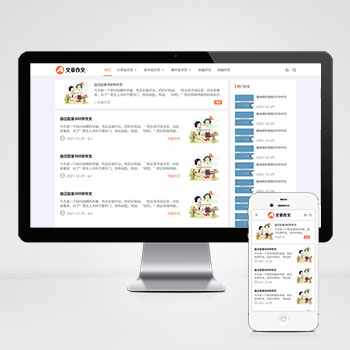 (响应式自适应)小学初中作文论文文章资讯博客pbootcms模板下载为中小学作文、教育类网站设计,特别适合展示学生作文、教学资源和写作指导等内容。采用响应式技术,确保在不同设备上都能获得良好的阅读体验。查看源码
 -
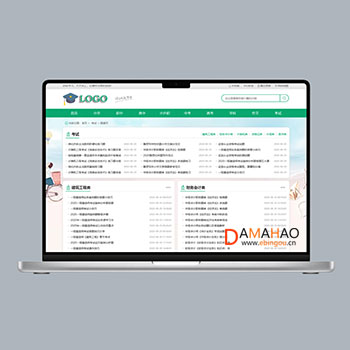 帝国CMS中小学生知识点试题练习题考试源码下载基于帝国CMS后台管理系统,支持在线修改联系信息、网站参数等配置,操作流程简洁明了。专注于中小学教育领域,集成知识点总结、试题练习、考试资讯等学习资源,为师生提供全面的在线学习支持与服务。查看源码
 -
 (自适应HTML5)响应式智能设备人工智能机器pbootcms源码免费下载这款基于PbootCMS开发的网站模板为人工智能和智能设备行业设计,采用现代化科技风格,突出产品的智能特性和技术创新。模板架构合理,功能完善,能够有效展示各类智能产品的核心功能和解决方案。查看源码
 -
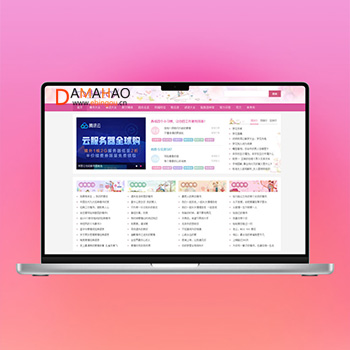 帝国cms7.5模板情感文学名言名句心情文章类源码下载带手机本模板基于帝国CMS7.5开发,为情感文学类网站设计。整体风格温馨雅致,布局合理清晰,特别适合建设情书分享、文学作品展示类网站。模板采用响应式设计,能够自动适配各种终端设备。查看源码
 -
 (自适应)包装机贴标机设备网站源码免费下载基于PbootCMS内核开发的响应式企业模板,为包装机械、贴标设备等工业领域打造,通过数字化展示提升企业专业形象。查看源码
| 分享笔记 (共有 篇笔记) |